Know the destination
Read the full current URL, scroll the read-only preview, and expand the observed redirect path. This is a document navigation history, not a capture of every network request.

A little clarity, in every QR
A QR code is just the beginning. See where it leads, take a closer look, then decide what happens next. Meet PeekNod, your everyday QR scanner.
Scan now


SCAN. PEEK. NOD.
From a café menu to a Wi-Fi code. Three simple steps, with you in control.
Point the camera at a QR code anywhere in view. No alignment box required. Or pick a photo or screenshot.
See a result made for the code: a website preview, Wi-Fi details, a contact card, or another supported format.
Choose to open the browser or hand off to a supported system action or app. Scanning alone does not perform those actions.
A PEEK BEFORE YOU GO
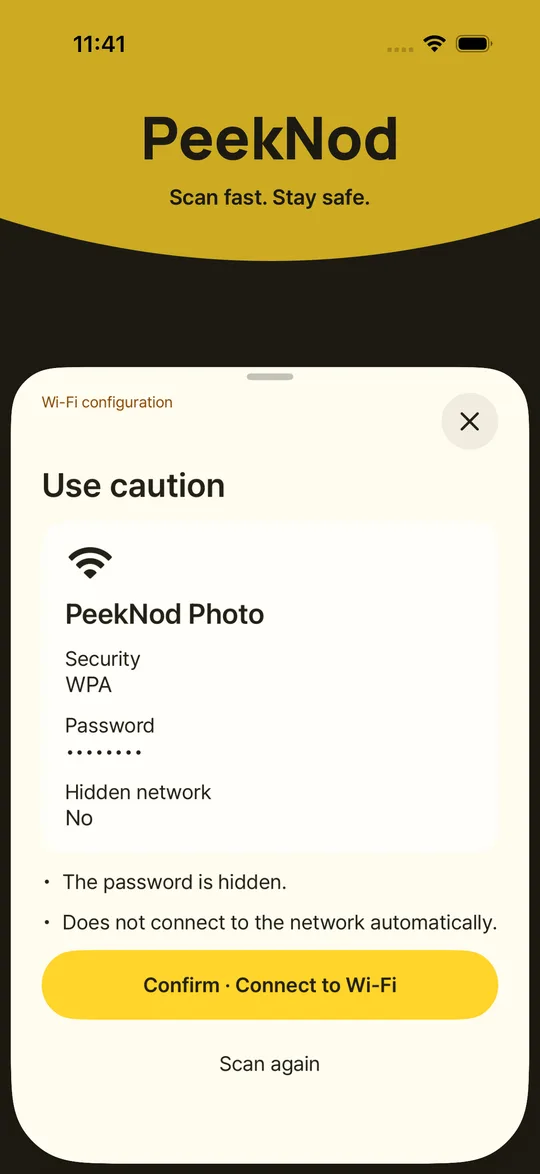
A link, a network, a contact. The right details for the next step.
A link, a network, a contact. The right details for the next step.
Read the full current URL, scroll the read-only preview, and expand the observed redirect path. This is a document navigation history, not a capture of every network request.
Review Wi-Fi, contacts, email, messages, locations, calendar events, text, and other recognized QR formats. Available actions depend on the format, operating system, and installed apps.
QR image processing happens on-device. PeekNod does not upload your photos or keep a scan-history database. If a photo contains several codes, choose which one to inspect.
Native iOS and Android apps, an uncluttered camera screen, and a flashlight on supported devices. Preview first; open in your device’s browser when you choose.
Scan now
FAQ
A few things worth knowing before your first scan.
No. It shows destination information and detectable risk signals, not a safety certificate. There is no dedicated site-reputation service connected. Check the address and warnings; do not enter secrets or pay just because a preview loads.
Camera and photo QR recognition, local interpretation, and local risk checks do not require a connection. Web previews and online destinations do. Android’s scanning SDK can also contact Google for its own diagnostics; see the SDK disclosure.
PeekNod does not send your scan history to a ZAKSAM server. Website previews, confirmed external actions, Android SDK metrics, and support messages have separate data handling. Read the privacy policy for those distinctions.
No. Some proprietary, encrypted, signed, or unsupported formats can only be identified or shown as text. PeekNod does not authenticate payment recipients or certificates, generate QR codes, or scan non-QR barcodes.
The current app targets iOS 16 or later and Android 6.0 or later. It supports the 20 languages in the language menu. Wi-Fi setup and other system actions vary by OS version and device; the app explains unsupported actions.
Allow camera access in your device settings. You can still choose a photo without camera permission. The iOS simulator does not provide a live device camera.
Improve lighting, reduce glare, or crop a photo around the QR code. For web previews, check your connection and the displayed reason. Some addresses and file types are intentionally blocked; do not bypass a warning to force them open.
Do not send QR passwords, authentication keys, payment details, or private links. Use a non-sensitive example whenever possible.
Drag down from the sheet’s top handle, use the accessibility dismiss action, or use Back on Android. Scroll the website inside the preview; use the sheet’s outer area to dismiss it.
Tell us your device model, OS version, app version, and the steps that led to the issue. Screenshots or a video can help us resolve it faster.